

Main thread yielding
When an application executes a long, uninterrupted JavaScript process (such as parsing a large payload or rendering complex carousels during startup), it blocks the TV processor. In Chrome DevTools, this appears as a continuous yellow block in the top CPU bar and generates a Long Task (flagged with a red corner) inside the timeline track. The impact on app behavior is normally seen as:- Delayed Initialization: The app startup is blocked because the browser cannot complete the remaining initialization steps until the script finishes.
- Input Lag & Unresponsiveness: The browser cannot process remote control clicks (
keydownevents), causing the app to feel frozen or laggy to the user.
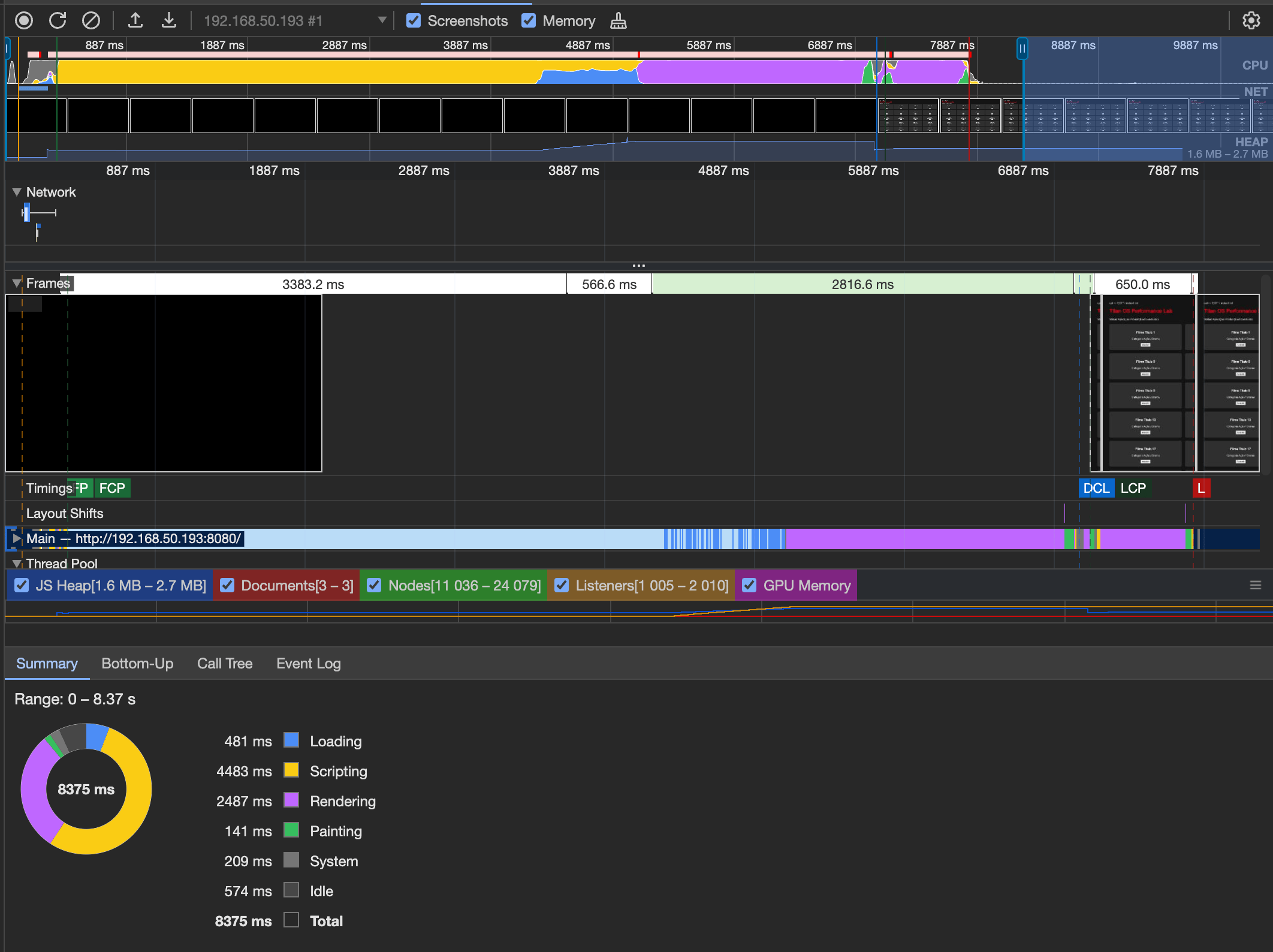
Monolithic execution: A single synchronous script occupies the Main thread for over 7 seconds, blocking UI rendering and remote inputs.
- Process any clicks sent from the user’s remote control.
- Update and render the UI on screen (preventing frozen screens).
- Continue executing the next chunk of your script right after.
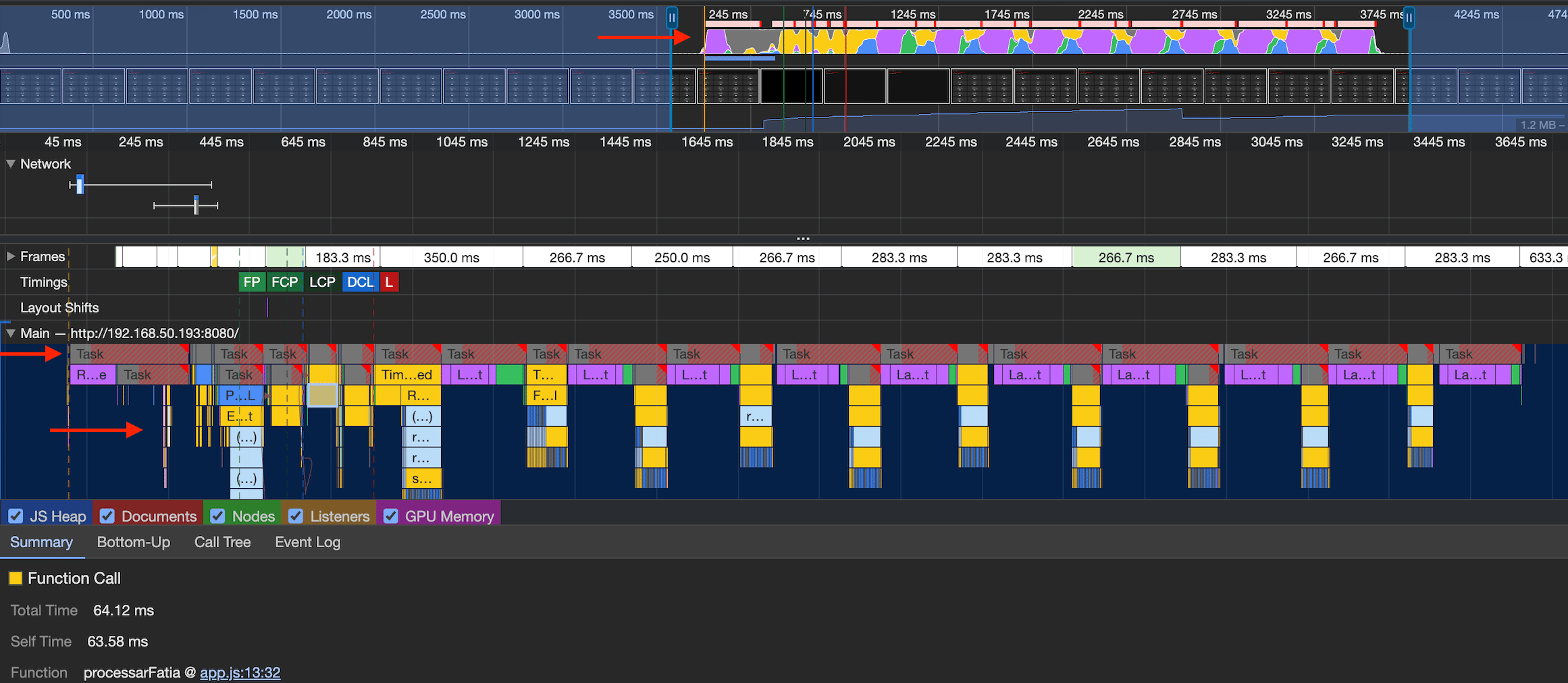
Chunked execution with yielding: The long script is broken into smaller tasks, allowing the browser to process UI rendering and inputs between executions.
setTimeout to split heavy JavaScript work into smaller chunks. While these are basic vanilla JavaScript demonstrations, your application framework may already provide built-in functions to handle task chunking.
Processing a large dataset synchronously blocks the Main Thread continuously until the entire loop finishes. On Smart TV hardware, this leads to heavy CPU saturation and input lag:
Code splitting & Dynamic lazy loading
Code Splitting and Lazy Loading are two different architectural concepts, but complementary, commonly used to optimize app performance:- Code Splitting: The strategy of breaking down a large JavaScript codebase into independent module files rather than bundling everything into a single script file.
- Lazy Loading: The strategy of fetching and evaluating those split modules on demand (or during CPU idle time) after the initial screen is already rendered.
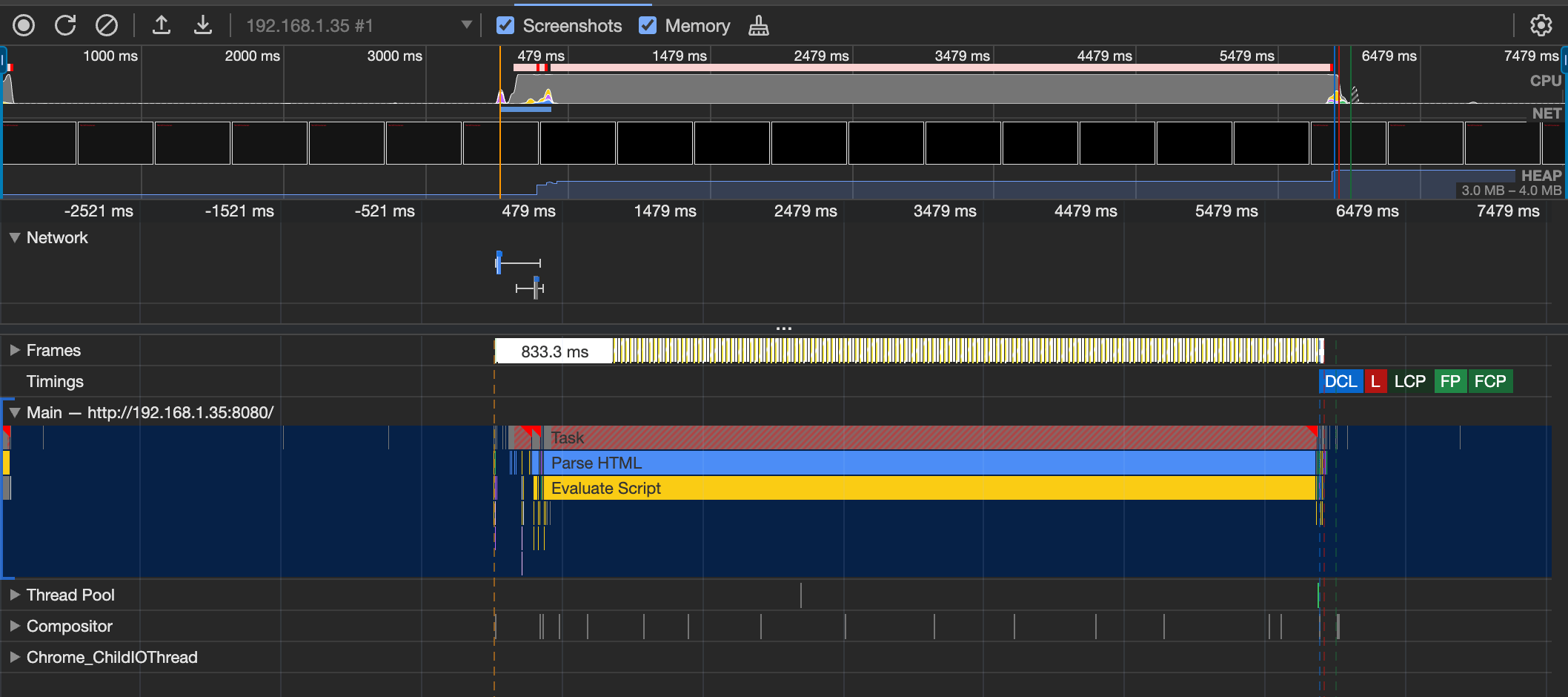
(System vs. Scripting)In the performance recording above, while yellow represents JavaScript execution, grey indicates low-level browser process overhead caused by continuous thread saturation. The Main track directly below confirms that this time is fully occupied by script evaluation.
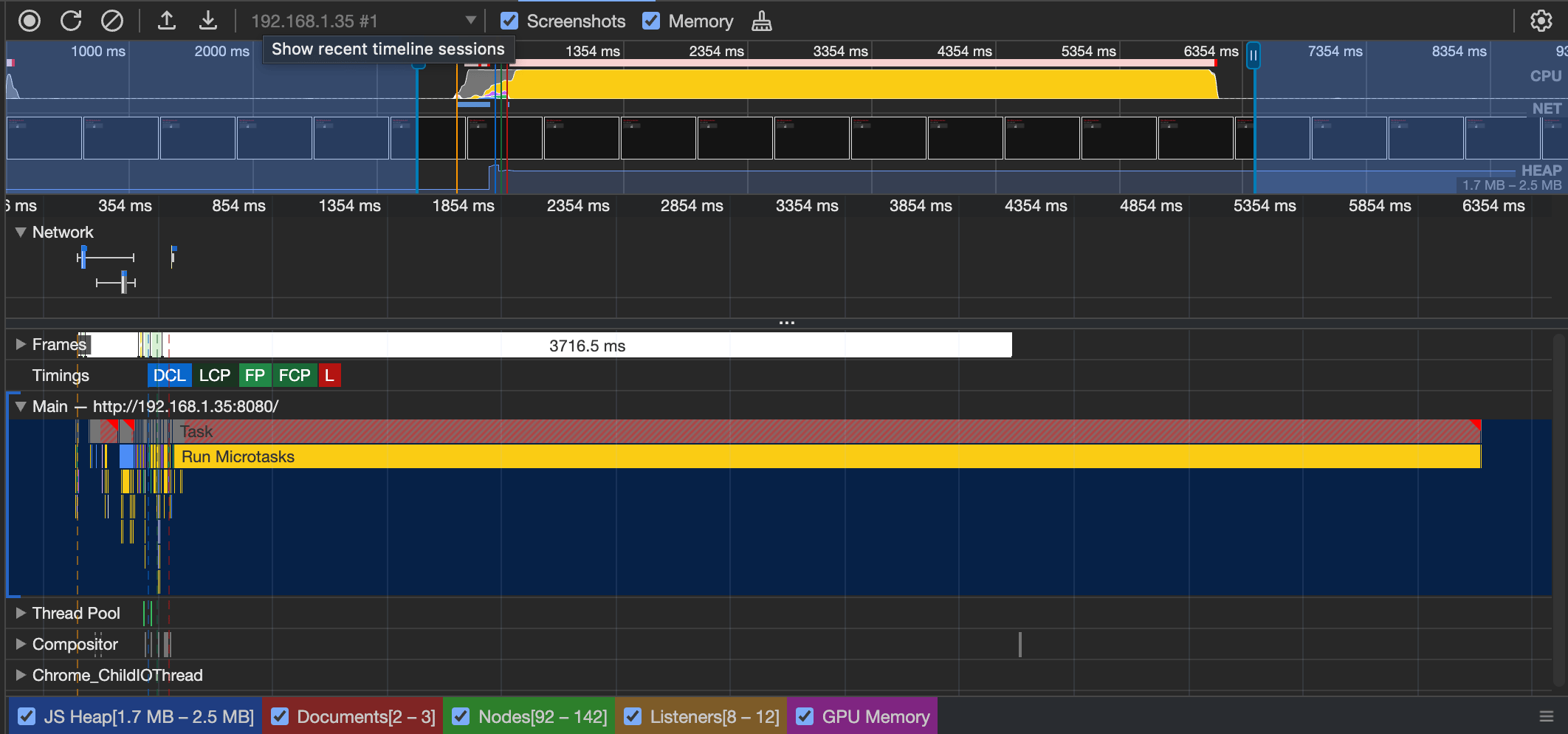
In this example the heavy processing inside
processHeavyModule() has been extracted into a separate ./heavy-module.js file.import() in a simple setTimeout successfully unblocks the initial cold boot, executing heavy modules shortly after boot still presents risks. On low-end Smart TV hardware, if the user starts navigating with the remote control while this deferred module runs, the main thread will freeze again, causing severe input lag and dropped frames.
Keep in mind that using Vanilla JavaScript with a static timeout here serves purely as a simplified, controlled demonstration to visualize CPU behavior in DevTools. In production applications, code loading can be orchestrated using various strategies based on product architecture:
- Route/Feature-based loading: Deferring imports until the user actually navigates to a specific page or action (e.g., loading player SDKs only when opening the Video Player, or using React’s
React.lazyandSuspense). - Interaction-aware deferral (Debounce): Waiting for the user to pause remote control navigation before executing background tasks.
- Idle-Time Scheduling: Executing tasks during CPU idle windows via
requestIdleCallback.
Lazy loading by route and event
Instead of loading modules during boot, a common production strategy is to defer fetching heavy scripts until the user explicitly requests a feature, such as opening a Video Player or navigating to a specific sub-page. This ensures that network bandwidth and CPU cycles are only consumed for resources the user actually interacts with.React.lazy() and <Suspense> to handle route and component-level code splitting without the need to manually orchestrating dynamic imports.
Importing files via user inactivity
Another approach is importing heavy assets during idle moments. By tracking user activity, the application can detect when remote control navigation pauses and download secondary modules in the background without affecting performance. Pre-loading scripts during inactive windows offers distinct advantages over traditional loading approaches:- Avoids navigation Freezes: Unlike running scripts right at app startup or using fixed timers, this strategy waits for the user to pause remote control navigation before executing heavy tasks, preventing input lag and dropped frames.
- Instant transitions: Because heavy assets are evaluated in the background while the user browses the catalog, opening secondary screens or video players feels immediate.
- Framework support: Libraries like React provide built-in tools like React.lazy and Suspense that make it simple to manage this state and safely fall back to loading modules on demand if needed.
- When profiling this implementation in Chrome DevTools, you will observe zero main thread blocking during continuous
keydownevents. The heavy module evaluation (yellow scripting block) will only appear in the timeline 1.5 seconds after the last key press is recorded. - Native
requestIdleCallbackis another alternative for idle scheduling, but not recommended. Low-end Smart TV browsers can behave unpredictably with it—often delaying tasks indefinitely under load. An interaction-aware Debounce gives you a deterministic, fixed 1.5-second threshold under your full control.
Adapting features for specific hardware
This is not a strategy that everyone needs. As already mentioned, some apps run smoothly on low-end hardware, while others don’t on high-end devices. It always depends on the app complexity. As an alternative, if an application continues to experience performance bottlenecks on lower-spec hardware even after code optimizations, simplify features on lower-tier hardware to preserve a smooth navigation experience:- Disabling heavy visual features: Disabling CPU elements on low-end models, such as replacing automatic video trailer previews in hero banners with static poster images.
- Simplifying visual effects: Removing demanding CSS effects like dynamic blurs (backdrop-filter) or heavy drop shadows during carousel navigation.
- Reducing DOM density: Decreasing the initial number of visible items rendered in poster carousels to lower memory usage.
Network, memory & asset optimization
Smart TV devices often operate over Wi-Fi networks with variable latency. Reducing transfer size directly accelerates parsing and execution timing.- Deferred third-party SDKs: This is one of the things that impacts a lot the performance. Defer the initialization of heavy non-critical third-party SDKs (such as analytics or error reporting tools) until after the initial interactive render (
FCP). - Geographic proximity & CDN delivery: Deploying application assets and APIs across Edge Networks or CDNs with nodes located close to the target audience’s region reduces request latency over slow connections.
- Image sizing & format selection: Serve images sized specifically for the TV display resolution (e.g., 1080p UI layer). Avoid sending 4K raw assets for small poster thumbnails in a carousel.
- Cache: Implement HTTP caching policies for static assets or strategies to cache request to APIs, aways also avoiding to cache a heavy amount of data at the frontend layer (you should balance here). The idea is to reduce eliminate redundant requests.
- DOM node recycling: This is not obligatory, but also helps. In large catalogs or continuous scrolling grids, unmount or recycle off-screen DOM nodes (Virtualization) to prevent RAM saturation and browser layout degradation.