> ## Documentation Index
> Fetch the complete documentation index at: https://docs.titanos.tv/llms.txt
> Use this file to discover all available pages before exploring further.
# Navigation
While the physical design of remote controls can vary between manufacturers (e.g., Philips, JVC), the core keycodes sent to your application are standardized, with exception of the back button. Your application should be built against this core set of keys to ensure broad compatibility.
## Standard Keys and Keycodes
Every remote control compatible with Titan OS will provide a standard 5-way navigation experience (Up, Down, Left, Right, OK/Enter) along with other essential keys. Your application should listen for keydown events to handle these inputs.
The following table lists the mandatory keys, their intended use, and the corresponding JavaScript key and keyCode values your application will receive.
| **Button** | **`key`** | **`keyCode`** | **Keycode HTML5** |
| ------------ | ----------------------- | ------------- | -------------------------- |
| Enter | `"Enter"` | `13` | `VK_ENTER` |
| Left | `"ArrowLeft"` | `37` | `VK_LEFT` |
| Down | `"ArrowDown"` | `40` | `VK_DOWN` |
| Right | `"ArrowRight"` | `39` | `VK_RIGHT` |
| UP | `"ArrowUp"` | `38` | `VK_UP` |
| 0-9 | `"Numpad0"`-`"Numpad9"` | `48`-`57` | `VK_0` - `VK_9` |
| Back | `"Backspace"` | `8 AND 461` | `VK_BACK or VK_BACK_SPACE` |
| Red | `"ColorFORed"` | `403` | `VK_RED` |
| Green | `"ColorF1Green"` | `404` | `VK_GREEN` |
| Yellow | `"ColorF2Yellow"` | `405` | `VK_YELLOW` |
| Blue | `"ColorF3Blue"` | `406` | `VK_BLUE` |
| Play | `"MediaPlay"` | `415` | `VK_PLAY` |
| Pause | `"MediaPause"` | `19` | `VK_PAUSE` |
| Play/Pause | `"MediaPlayPause"` | `179` | `VK_PLAY_PAUSE` |
| Stop | `"MediaStop"` | `413` | `VK_STOP` |
| Fast fwd | `"MediaTrackNext"` | `417` | `VK_FAST_FWD` |
| Rewind | `"MediaRewind"` | `412` | `VK_REWIND` |
| Channel UP | `"PageUp"` | `33` | `VK_CHANNEL_UP` |
| Channel DOWN | `"PageDown"` | `34` | `VK_CHANNEL_DOWN` |
## Consistent Keycode Event Handling
Every single key press operation consists of corresponding keydown and keyup events. To prevent processing a key twice, act on either the keydown event or the keyup event, not both. Handling both events can lead to overlapping actions. It is most common to act on keydown.
## The Back Button
The button may be physically labeled Back, Return, or with an arrow icon.
**Functionality:** It should always navigate the user to their previous screen or state (e.g. closing modals) within your app. When pressed repeatedly from any screen, it must eventually lead the user back to the app's main/home screen.
**Exiting the App:** When the Back button is pressed on the app's main screen, the application should exit. It's mandatory prompt the user with a confirmation dialog ("Do you want to exit?").
**Device compatibility:** The back button keycode is different for Philips and JVC devices. To ensure compatibility with all devices, your app must handle both keyCode depending on which brand you're running your app. To do it, we recommend you to:
* Identify the brand with Titan SDK
* Apply a condition to handle the keyCode `8` for Philips and `461` for JVC.
**Playback:** During full-screen video playback, pressing Back should typically return the user to the previous content details screen or overlay the player controls. It should not exit the player or the app without user confirmation.
## Sample Back Key Handling
```javascript theme={null}
document.addEventListener("keydown", async (e) => {
const deviceInformation = await sdk.deviceInfo.getDeviceInfo();
const brand = deviceInformation.Channel?.brand;
// For full compatibility, handle 8 for Philips and 461 for JVC
const BACK_KEY_CODE = brand === 'Philips' ? 8 : 461;
switch (e.keyCode) {
case BACK_KEY_CODE:
e.preventDefault(); // Prevents default browser back behavior
// If on the main app screen, confirm exit
if (isUserOnMainScreen()) {
showExitConfirmation();
} else {
// Otherwise, navigate back within the app
window.history.go(-1);
}
break;
// ... other key cases
}
}, true);
// This is to use in the "confirm" button of your exit confirmation modal
function exitApp() {
// Use the Titan OS API if available, otherwise fall back to window.close()
if (typeof SmartTvA_API !== "undefined" && SmartTvA_API.exit) {
SmartTvA_API.exit();
} else {
window.close();
}
}
```
**Note:** The code above is just a logical example for you to understand the flow. We recommend you to use your own logic based on this one to make sure your app is doing what is expected for your needs.
## Manufacturer-Specific Remotes
This section details the physical remote controls for specific TV brands running Titan OS. While the core keycodes above remain the same, some remotes may have additional keys.
**Important:** Keys not listed in the core keycode table (e.g., Settings, Source, branded app buttons like Netflix) are handled by the OS. Events for these keys will not be sent to your application.
## Philips Remotes
Unique Keys:
Ambilight Key: This key is handled by the system to control the TV's Ambilight feature. It does not generate an event for the application.
Settings (Gear Icon): Opens the main TV settings menu. This is a system-level action.
## JVC Remotes
JVC remotes may have a different layout, including dedicated media or branded application buttons.
Unique Keys:
Branded App Keys (e.g., YouTube, Prime Video): These keys are shortcuts to launch the respective applications. They are handled by the system and cannot be intercepted by your app. If your app is in the foreground, pressing one of these keys will cause your app to be suspended and the new app to launch.
Source/Input Key: Opens the TV's input selection menu (e.g., HDMI 1, AV). This is a system-level action.
## OSKB
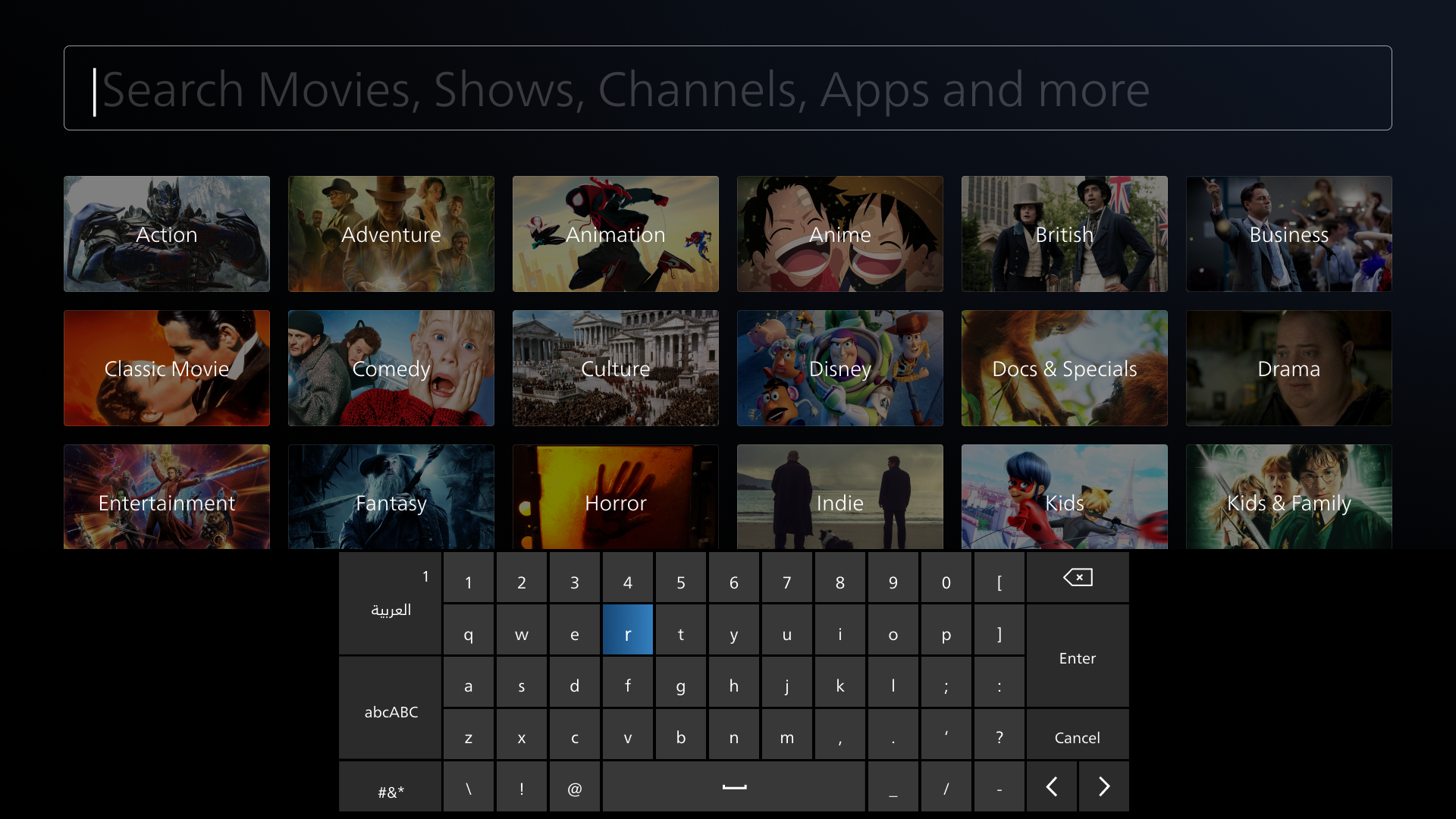
Titan OS features a system keyboard that is automatically displayed on the screen when the focus is placed in an input field. Referred to as the on-screen keyboard (OSKB), it serves as the primary text input method for Titan OS. Utilising the system keyboard is optional - it is possible to use your own on-screen keyboard solution if preferred or required.
### System keyboard UI
Titan OS’ OSKB incorporates variations in its user interface across different devices to ensure usability. However, it generally adheres to the following characteristics:
* Emerges from the bottom of the screen
* Occupies 100% of the screen width
* Occupies 1/3 of the screen height
* Initially set to English language; future updates will align with the device's country settings
The OSKB supports multiple layouts, including:
* Standard QWERTY
* Alpha-numeric
* Standard numeric with numbers 0-9
* Standard numeric with alternate characters such as %, +
### Custom keyboard
If the system keyboard does not meet your application’s requirements or if you seek UI consistency within your app, you can define a custom keyboard. Considerations for implementing a custom keyboard include:
* Keyboard usability
* UI coherence with the application
* Smooth focus movement
Enabling a custom keyboard will require adjustments to the input box, such as adding disabled properties, etc.
## Common Issues and Troubleshooting
Actions are triggered twice due to handling both keydown and keyup events.
**Solution:**
Ensure the app handles only one of the events, preferably the keydown event.
The app listens for the wrong keycode (e.g., 27 instead of 8).
**Solution:**
Update the app to use the correct keycode (8) or the constant window\.VK\_BACK for better readability.
The back key does not perform the expected action, such as navigating to the previous screen.
**Solution:**
Verify the keycode handling in the app and ensure it aligns with TitanOS standards. Check if VK\_BACK is implemented correctly in the app’s code.
Pressing the back key exits the app instead of navigating within it.
**Solution:**
Ensure the back key functionality is limited to navigation within the app and only exits the app from the main menu or home screen.
When pressing the back key during video playback, an intermediate screen is briefly displayed before returning to the content page.
**Solution:**
Review and adjust the key event handling and navigation logic to ensure that pressing the back key during playback directly returns to the content page without intermediate screens. Ensure proper state management to avoid temporary state changes that cause intermediate screens to display.
When a user presses the Enter key in an `` tag, it triggers the platform OSKB (On-Screen Keyboard). This may cause two keyboards to appear on the screen. This behavior can be adjusted by following one of the approaches below.
**Solution:**
* **Avoid using `` tags**: Instead of using the `` tag, implement the input field using a different element, such as a `
`. This allows you to use the app's OSKB without interference from the platform OSKB.
* **Use `` tags with Platform OSKB**: If you prefer to use the `` tag, ensure that only the platform OSKB is called and not the app's OSKB. This ensures a consistent user experience without triggering multiple keyboards.
 ### System keyboard UI
Titan OS’ OSKB incorporates variations in its user interface across different devices to ensure usability. However, it generally adheres to the following characteristics:
* Emerges from the bottom of the screen
* Occupies 100% of the screen width
* Occupies 1/3 of the screen height
* Initially set to English language; future updates will align with the device's country settings
The OSKB supports multiple layouts, including:
* Standard QWERTY
* Alpha-numeric
* Standard numeric with numbers 0-9
* Standard numeric with alternate characters such as %, +
### Custom keyboard
If the system keyboard does not meet your application’s requirements or if you seek UI consistency within your app, you can define a custom keyboard. Considerations for implementing a custom keyboard include:
* Keyboard usability
* UI coherence with the application
* Smooth focus movement
Enabling a custom keyboard will require adjustments to the input box, such as adding disabled properties, etc.
## Common Issues and Troubleshooting
### System keyboard UI
Titan OS’ OSKB incorporates variations in its user interface across different devices to ensure usability. However, it generally adheres to the following characteristics:
* Emerges from the bottom of the screen
* Occupies 100% of the screen width
* Occupies 1/3 of the screen height
* Initially set to English language; future updates will align with the device's country settings
The OSKB supports multiple layouts, including:
* Standard QWERTY
* Alpha-numeric
* Standard numeric with numbers 0-9
* Standard numeric with alternate characters such as %, +
### Custom keyboard
If the system keyboard does not meet your application’s requirements or if you seek UI consistency within your app, you can define a custom keyboard. Considerations for implementing a custom keyboard include:
* Keyboard usability
* UI coherence with the application
* Smooth focus movement
Enabling a custom keyboard will require adjustments to the input box, such as adding disabled properties, etc.
## Common Issues and Troubleshooting