> ## Documentation Index
> Fetch the complete documentation index at: https://docs.titanos.tv/llms.txt
> Use this file to discover all available pages before exploring further.

# Testing your app

This guide will help you to launch your app on your TV. This proccess consists of two parts: Configure your app to be tested in the Partner Portal (web) and setup the DevView (in the device) to launch the app you've configure configured in the Partner Portal.

The DevView is an app available on all Titan OS devices that helps partners to develop and test their apps. It’s basically the DevTool for TitanOS, and it provides a section to launch your app on the Smart TV using the app URL, as well as a section with technical information about the TV, such as resolution, model, and DRM support.

### Add your apps to the Sandbox

<Steps>
  <Step title="Create Account / Log in to Titan OS Partner Portal">
    Go to [Partner Portal](https://partners.titanos.tv/) on your computer.
  </Step>

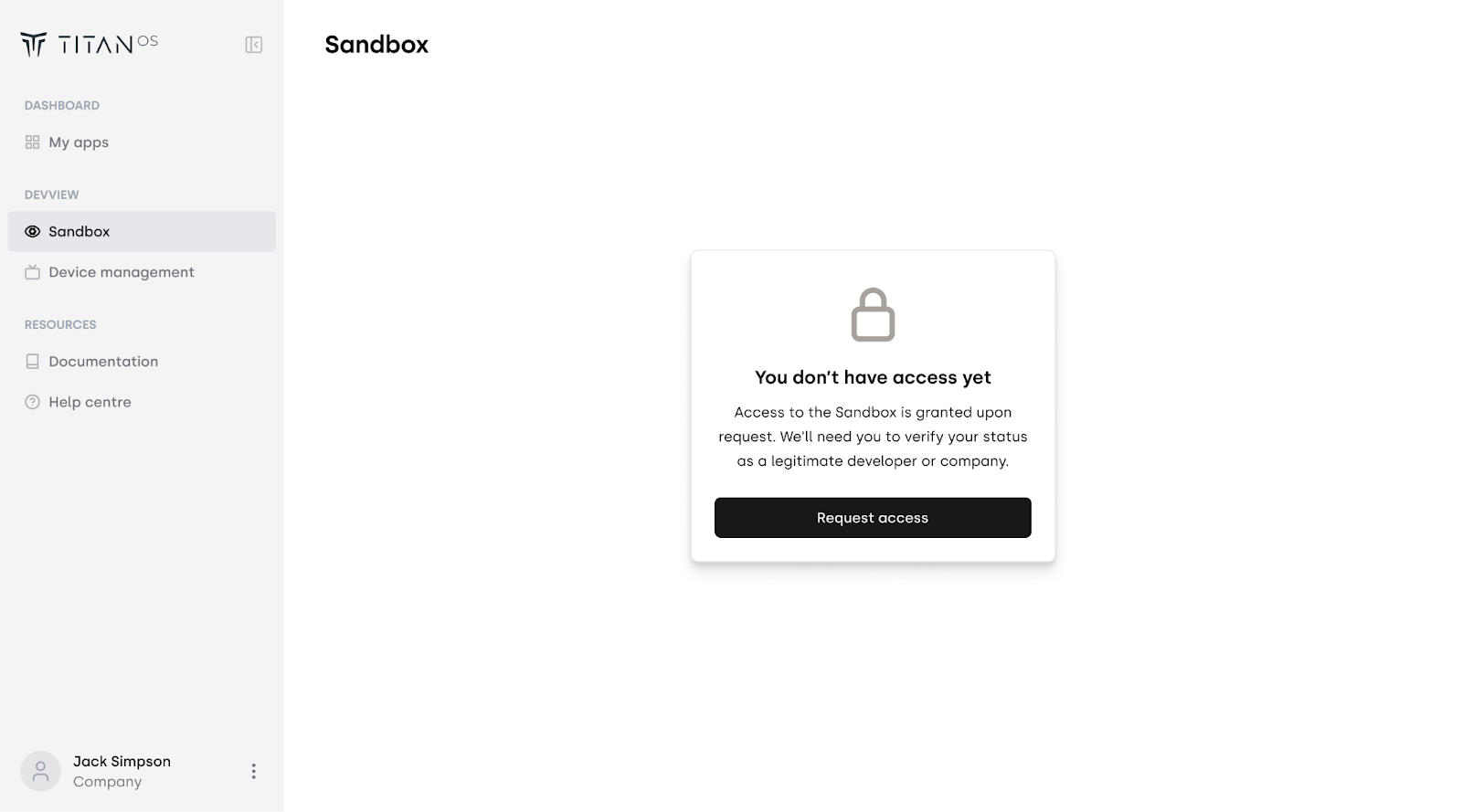
  <Step title="Navigate to the DevView section.">
    If you don’t have access, you can request it in the portal. We will review
    and resolve it as soon as possible
    <Frame>
      <img src="https://mintcdn.com/titanos-75/xjXsmJAaaTj68gNK/images/devviewinstall/dv_access.png?fit=max&auto=format&n=xjXsmJAaaTj68gNK&q=85&s=510488af403160b7a0aa6c8168716bda" style={{ borderRadius: "0.5rem" }} width="1600" height="889" data-path="images/devviewinstall/dv_access.png" />
    </Frame>
  </Step>

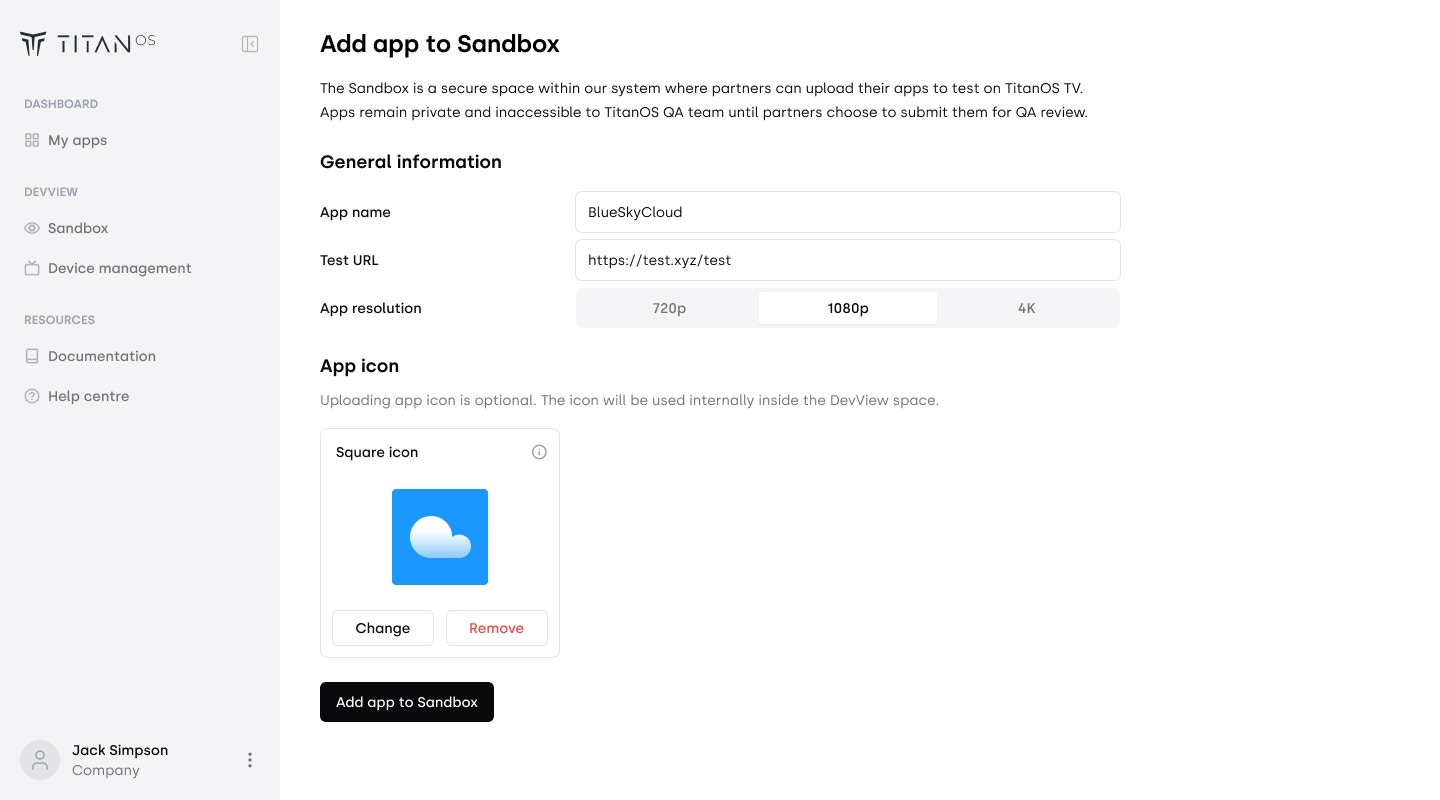
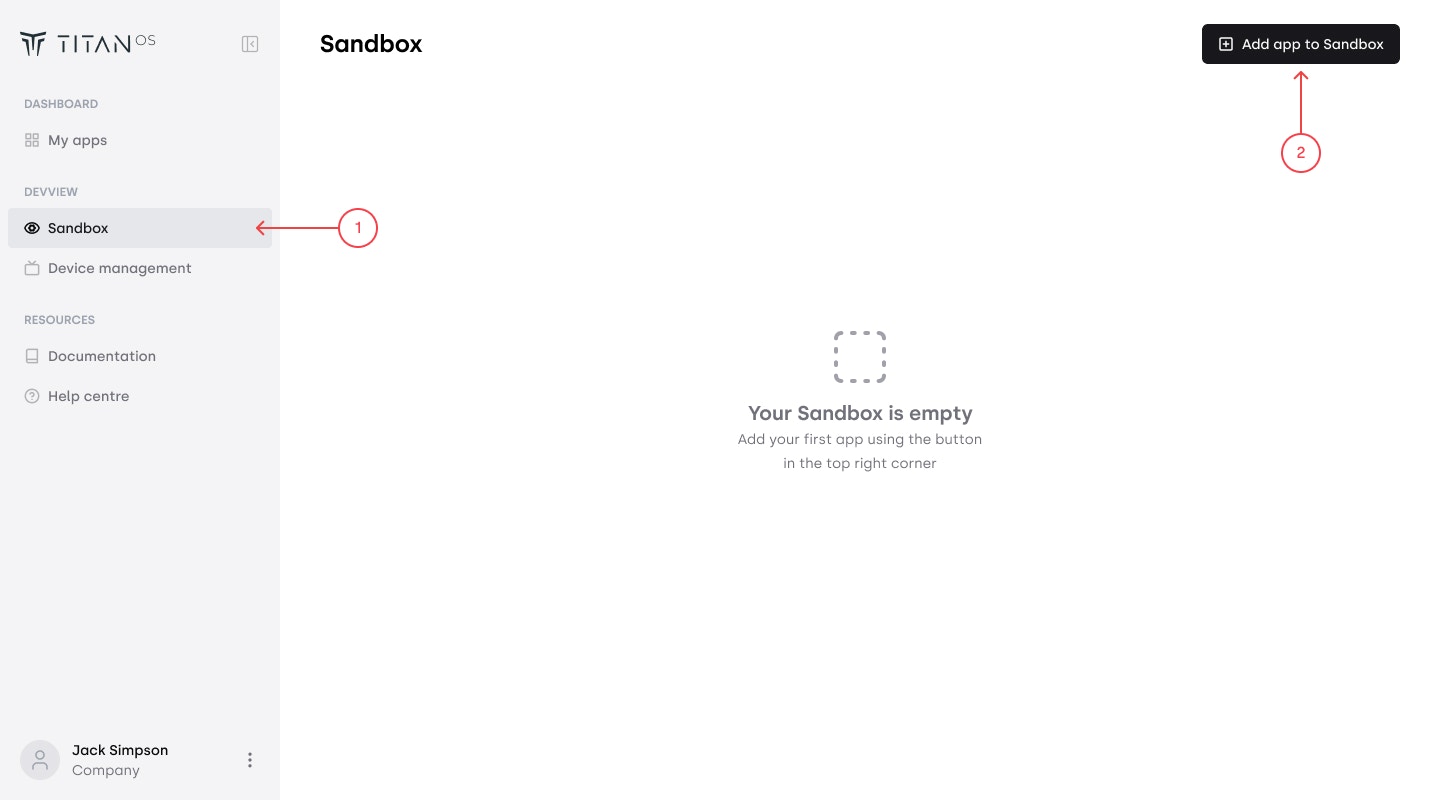
  <Step title="Add Apps to Sandbox for Testing">
    Add the apps you want to test in your Sandbox by clicking the button in the
    top right corner.
    <Frame>
      <img src="https://mintcdn.com/titanos-75/xjXsmJAaaTj68gNK/images/devviewinstall/DV_1.jpg?fit=max&auto=format&n=xjXsmJAaaTj68gNK&q=85&s=8d68cda053279bd5e10d550740f39d20" style={{ borderRadius: "0.5rem" }} width="1440" height="800" data-path="images/devviewinstall/DV_1.jpg" />
    </Frame>

    Fill in the required information

    <Frame>
      <img src="https://mintcdn.com/titanos-75/xjXsmJAaaTj68gNK/images/devviewinstall/DV_2.jpg?fit=max&auto=format&n=xjXsmJAaaTj68gNK&q=85&s=8e5126f67e8eb43d5838544ec87c7896" style={{ borderRadius: "0.5rem" }} width="1440" height="800" data-path="images/devviewinstall/DV_2.jpg" />
    </Frame>
  </Step>
</Steps>

### Pair your device

<Steps>
  <Step title="Search for DevView app">
    * For Philips 2020-2022 models, you can find it in the Smart TV collection / App Gallery
    * For other Titan OS models, you can find it as well in the Apps section on the Lifestyle carousel
    <Frame>
      <img src="https://mintcdn.com/titanos-75/xjXsmJAaaTj68gNK/images/devviewinstall/icon.png?fit=max&auto=format&n=xjXsmJAaaTj68gNK&q=85&s=962345aa7a706318a8d235a91c62b512" style={{ borderRadius: "0.5rem" }} width="1440" height="800" data-path="images/devviewinstall/icon.png" />
    </Frame>
  </Step>

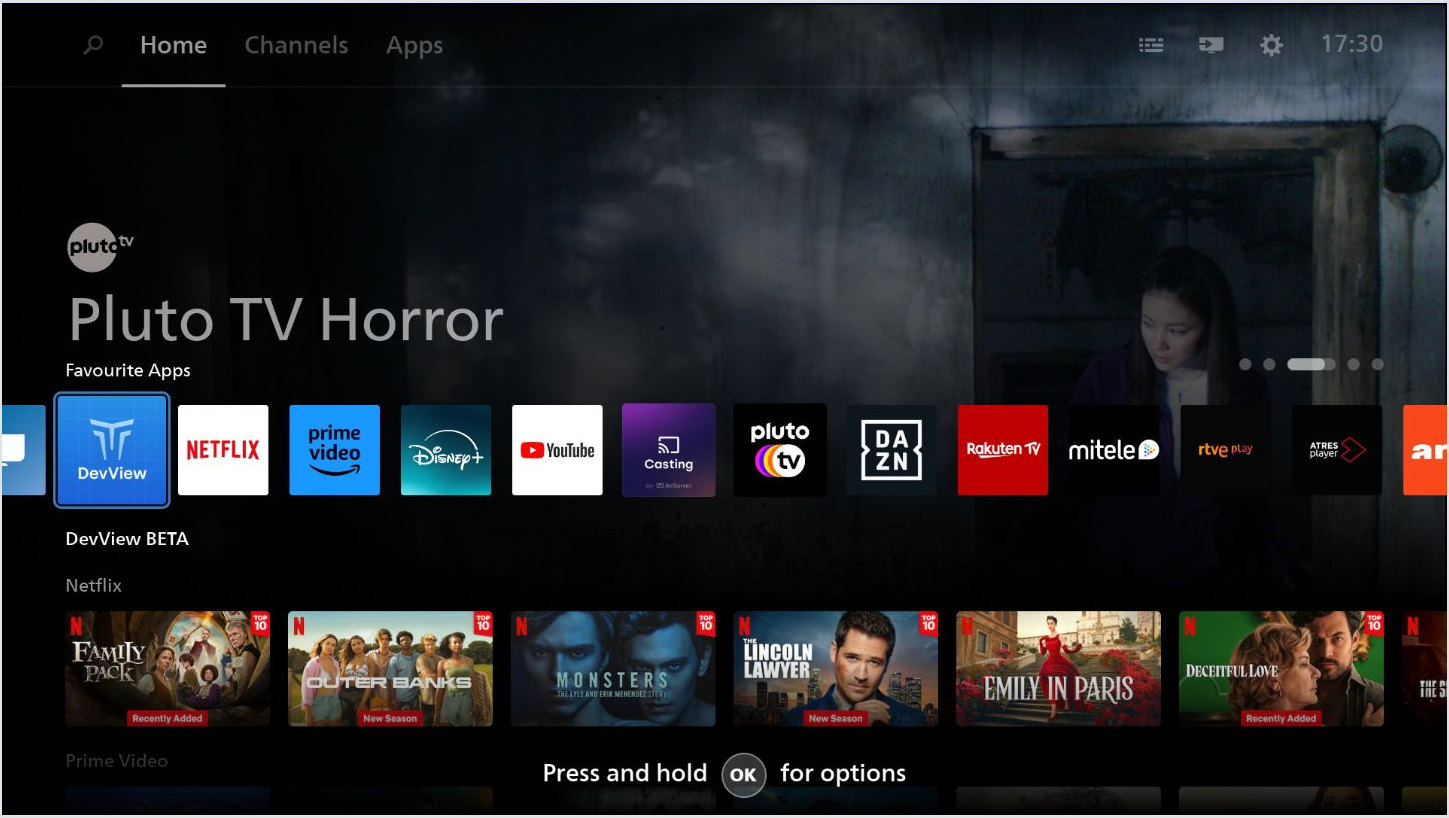
  <Step title="Optional: You can add DevView app to your favorite carousel in the home page">
    <Frame>
      <img src="https://mintcdn.com/titanos-75/xjXsmJAaaTj68gNK/images/devviewinstall/dv_homescreen.png?fit=max&auto=format&n=xjXsmJAaaTj68gNK&q=85&s=71b5148c1f5e868726e18add384fa271" style={{ borderRadius: "0.5rem" }} width="1449" height="818" data-path="images/devviewinstall/dv_homescreen.png" />
    </Frame>
  </Step>

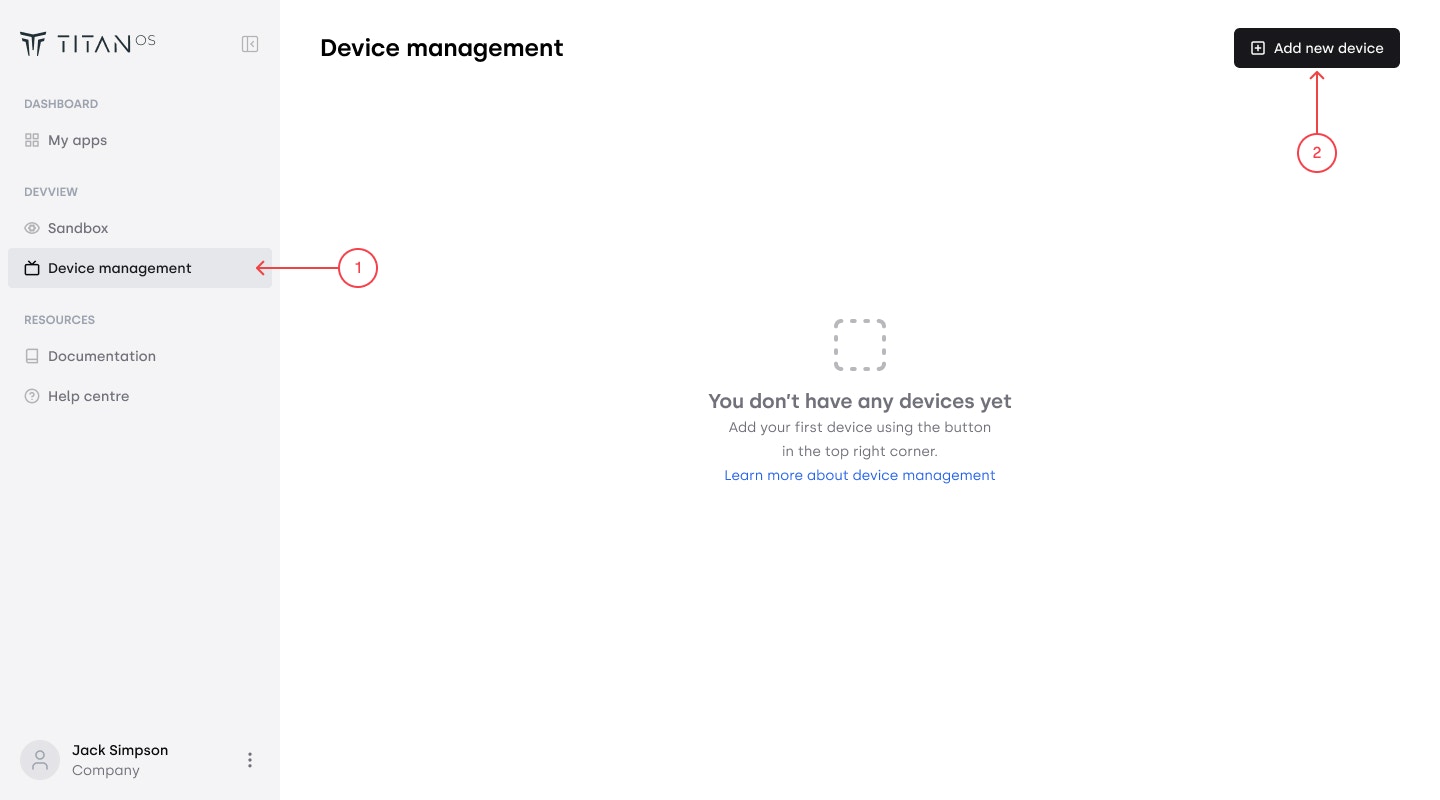
  <Step title="Go to Device Management to pair your TV for testing. Press “Add new device” button in the top right corner">
    <Frame>
      <img src="https://mintcdn.com/titanos-75/xjXsmJAaaTj68gNK/images/devviewinstall/DV_3.jpg?fit=max&auto=format&n=xjXsmJAaaTj68gNK&q=85&s=a4414f84126d438a4ce5d6a4ea6cfae6" style={{ borderRadius: "0.5rem" }} width="1440" height="800" data-path="images/devviewinstall/DV_3.jpg" />
    </Frame>
  </Step>

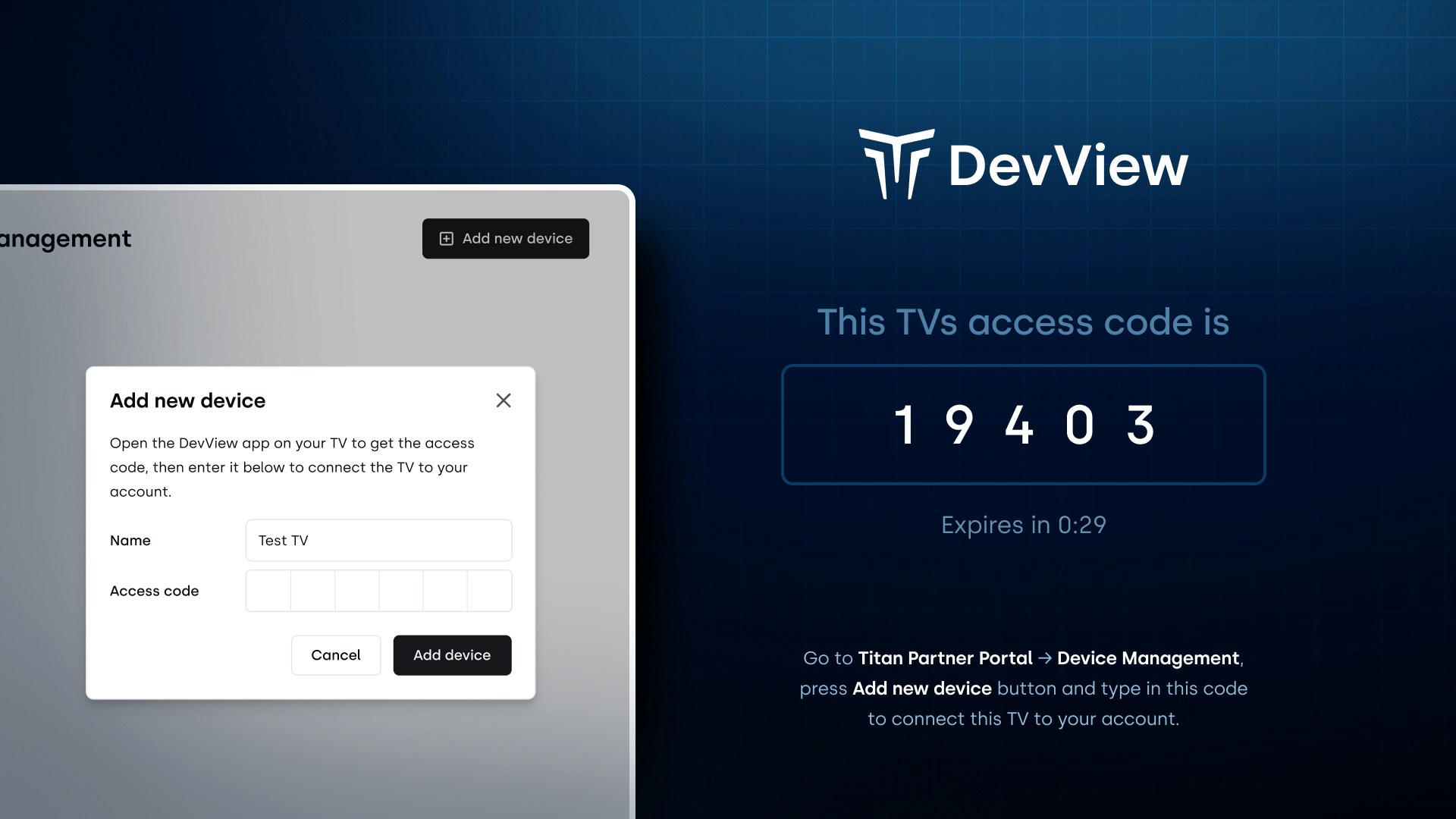
  <Step title="Pair your device with your account by entering the access code you see on the TV screen.">
    <Frame>
      <img src="https://mintcdn.com/titanos-75/xjXsmJAaaTj68gNK/images/devviewinstall/DV_4.jpg?fit=max&auto=format&n=xjXsmJAaaTj68gNK&q=85&s=9ea7376f6db9b6b37eb92e3cbdc957a3" style={{ borderRadius: "0.5rem" }} width="1920" height="1080" data-path="images/devviewinstall/DV_4.jpg" />
    </Frame>
  </Step>

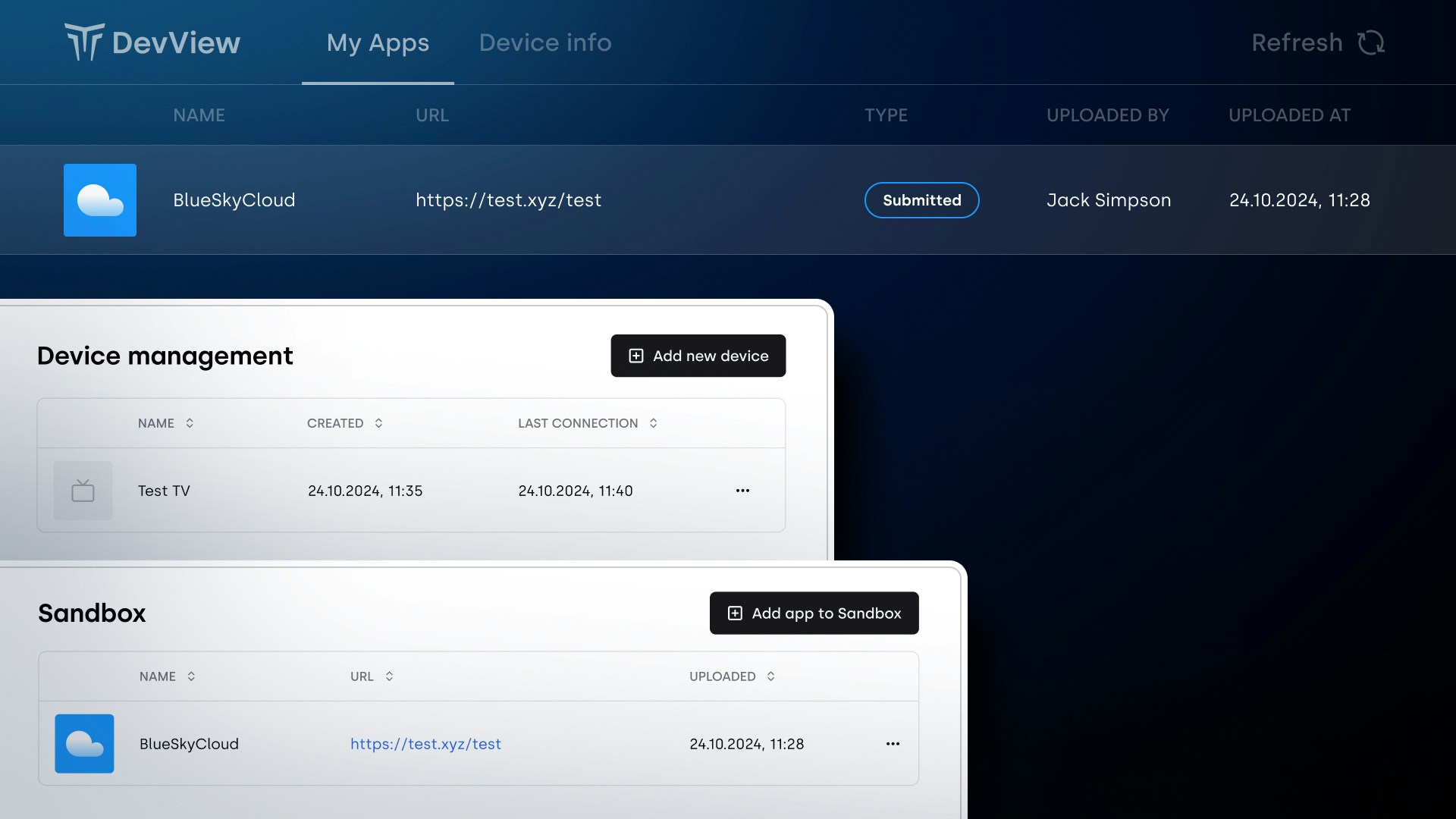
  <Step title="When ready, test your app candidates on the paired device.">
    This is only for your internal testing purposes. You can later submit your
    candidate for official QA and release process in My app-> Add new app
    <Frame>
      <img src="https://mintcdn.com/titanos-75/xjXsmJAaaTj68gNK/images/devviewinstall/DV_5.jpg?fit=max&auto=format&n=xjXsmJAaaTj68gNK&q=85&s=267a356820e75287cd9a3857fe66bd0c" style={{ borderRadius: "0.5rem" }} width="1920" height="1080" data-path="images/devviewinstall/DV_5.jpg" />
    </Frame>
  </Step>
</Steps>

<Info>Pictures for illustration purposes only</Info>